Interface Overview
Menu
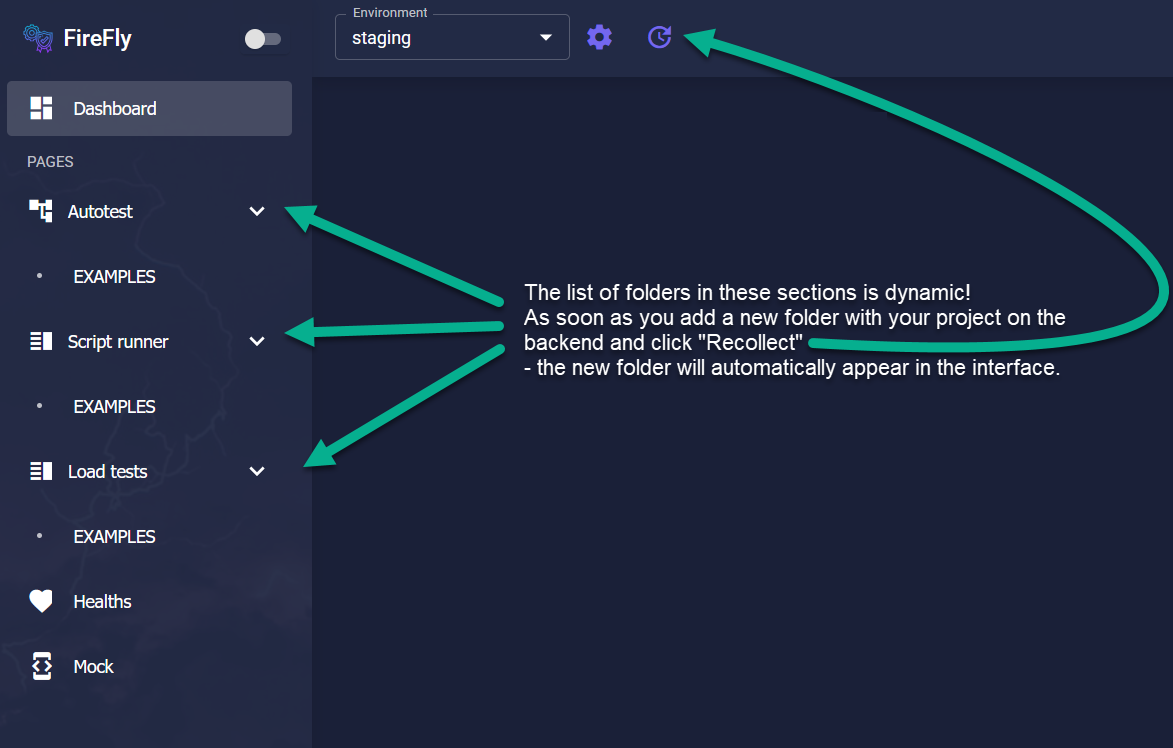
In the menu, you will find sections dedicated to:
Autotests
Scripts
Load tests
Environments
Running the same tests or scripts across different environments is critical — and FireFly fully supports this.
The history and statistics of autotests and scripts, as well as the selected execution environment, are controlled through the environment selector in the header.
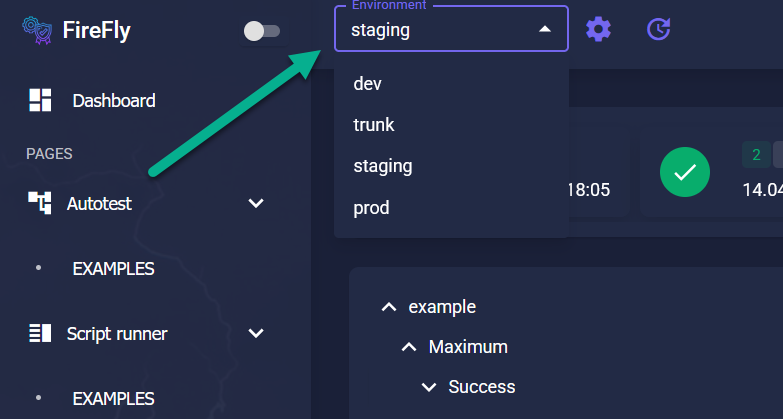
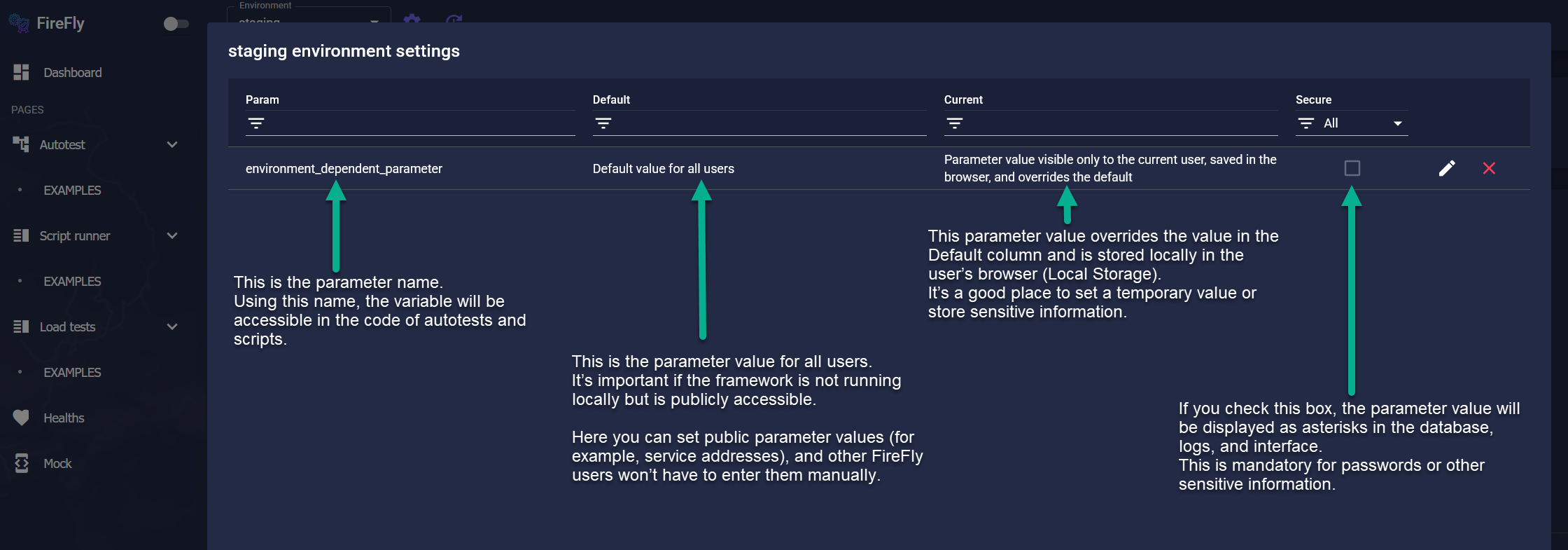
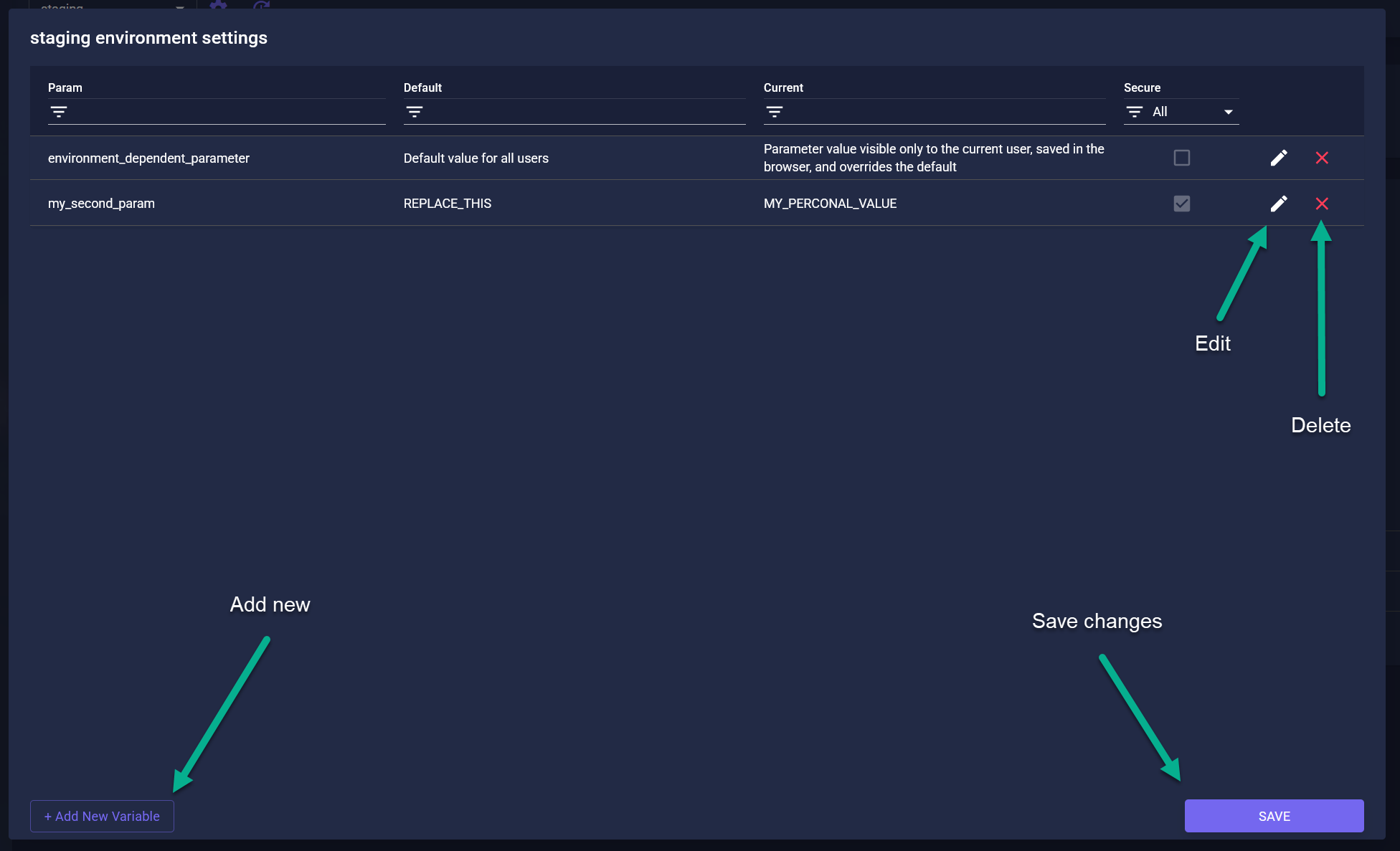
You can easily modify environment settings without changing the code:
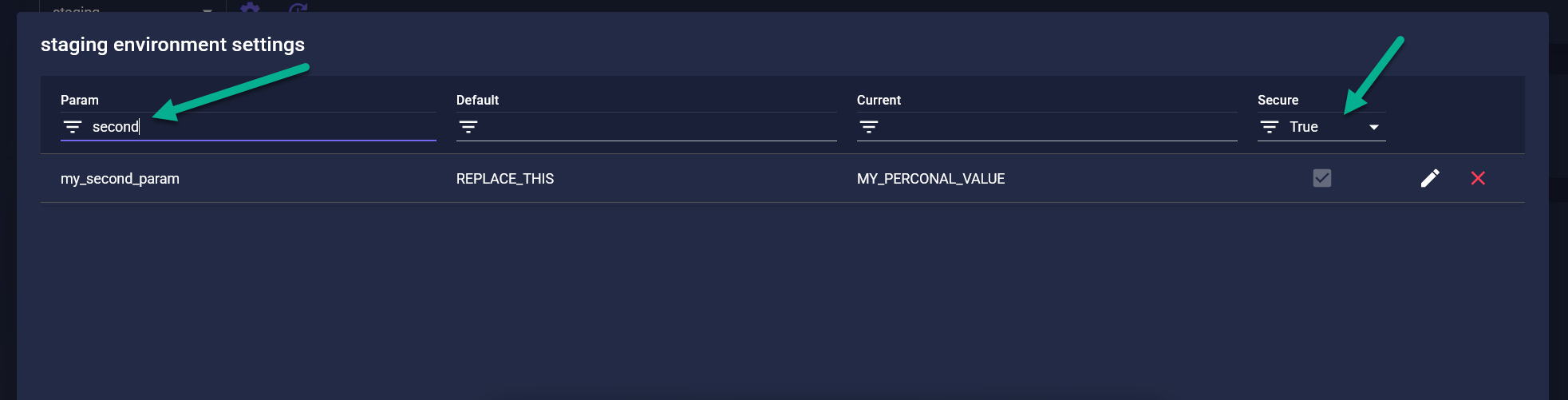
Filtering is also available — you can quickly find the desired parameter by applying filters across one or multiple columns.
Additionally, you can delete, edit, or add new environment parameters as needed.
Don’t forget to save your changes!
Run Auto Tests
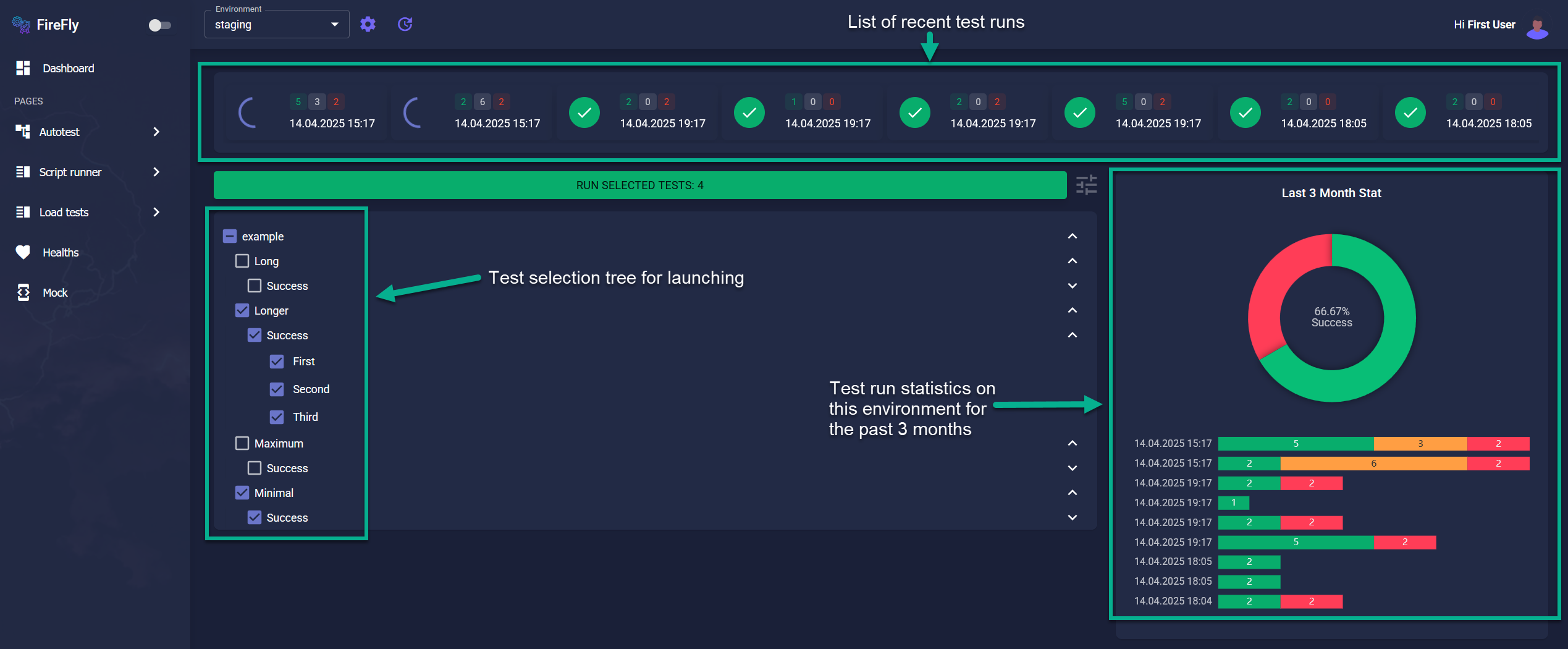
On the Run Auto Tests page, you will see:
A list of recent test runs
A tree view of available autotests
Autotest execution statistics
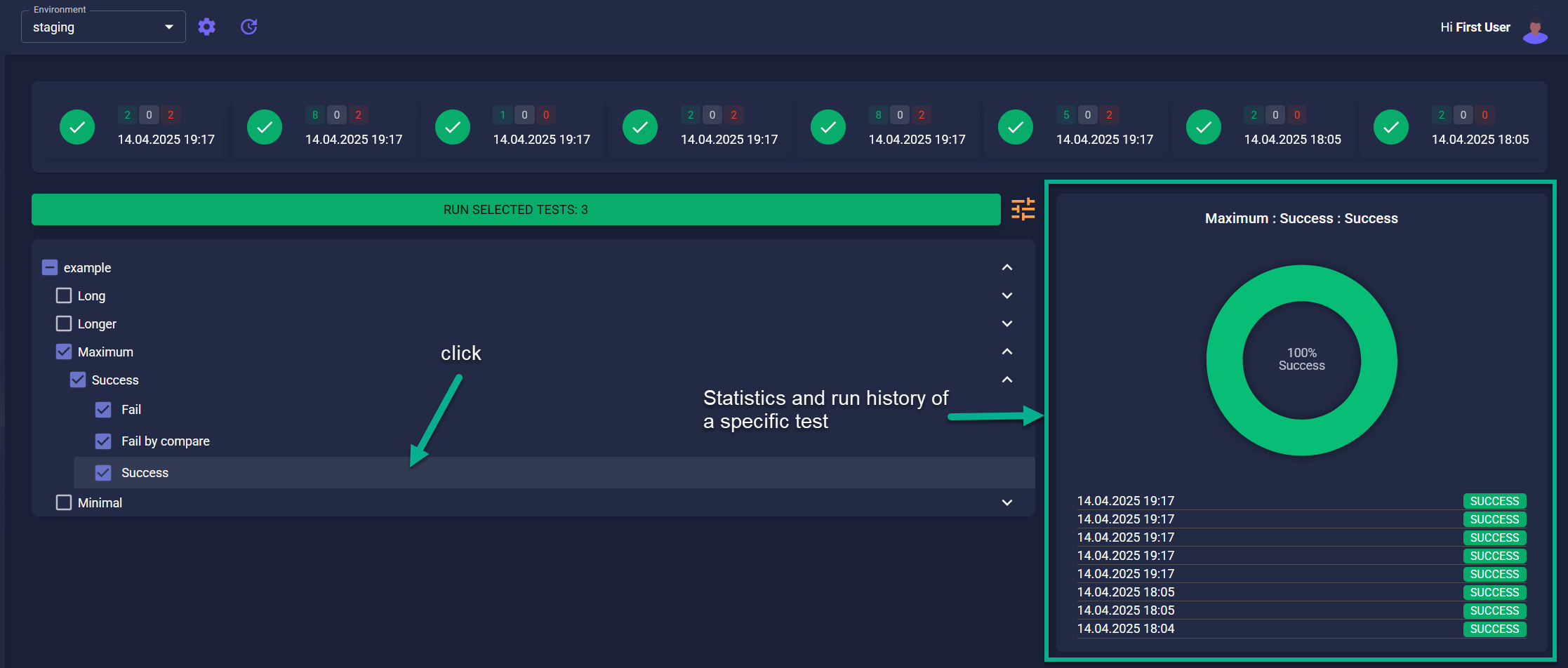
To run tests, simply select the ones you need using checkboxes, and press the big green button.
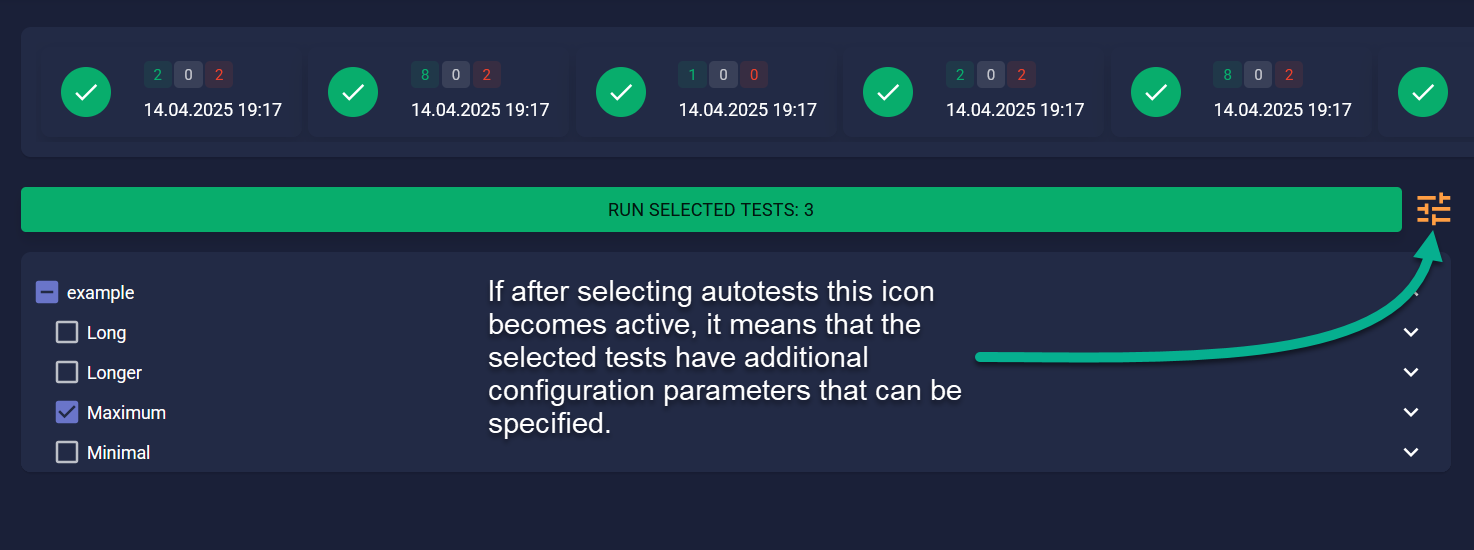
Some tests may require additional run configuration.
After selecting such a test, the “Additional Settings” button will become active.
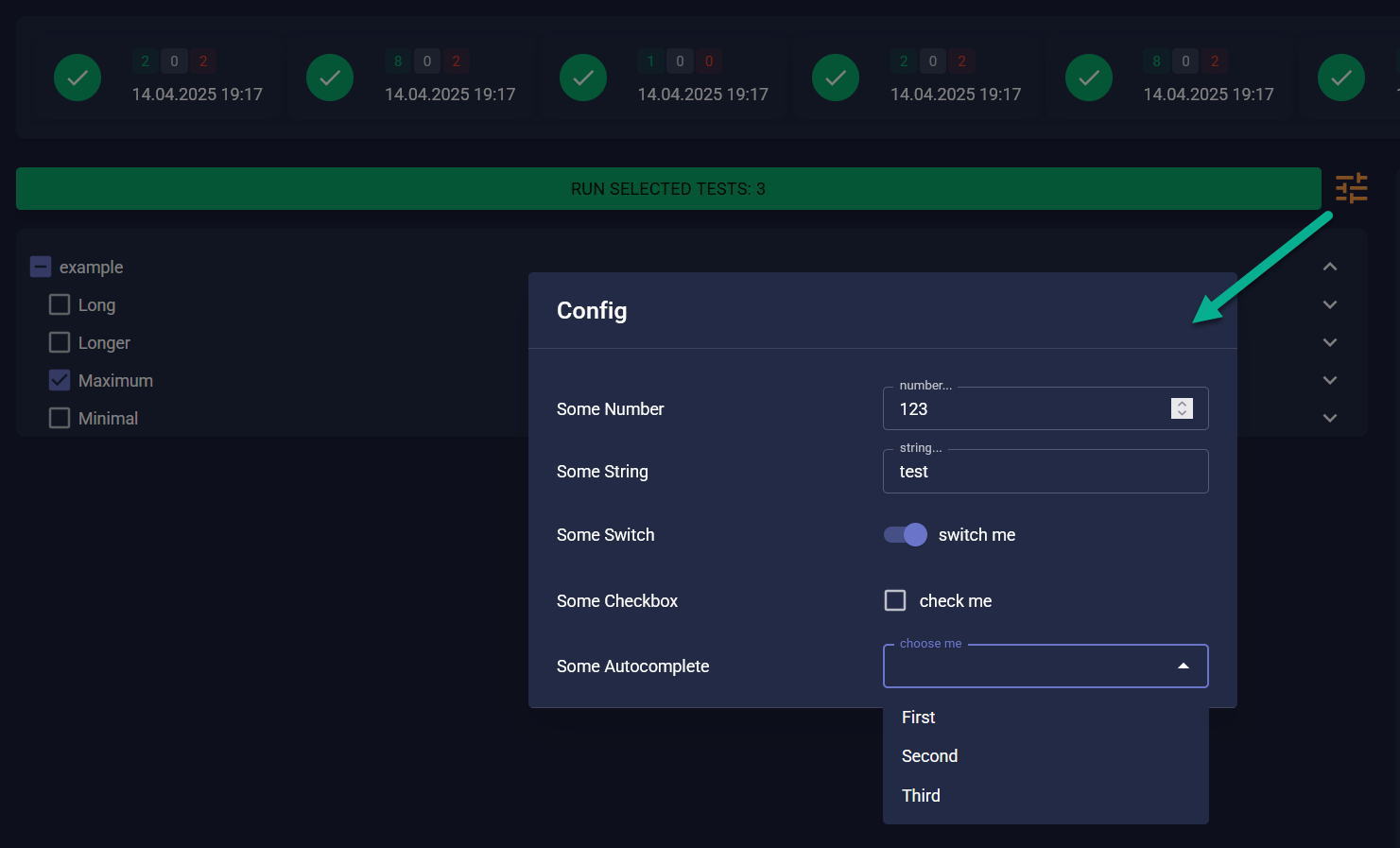
Click it to configure specific parameters before running:
You can also click on any specific test to view statistics related only to that test.
Recent Test Runs
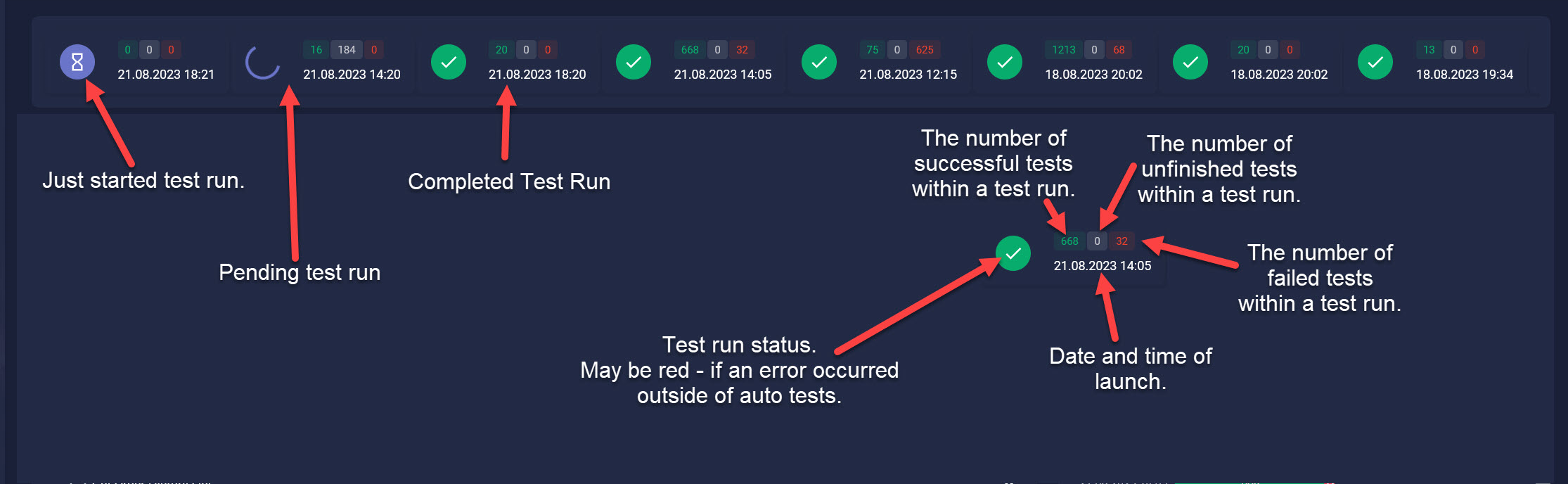
The recent runs list shows summaries of previously launched tests.
Test Run Report
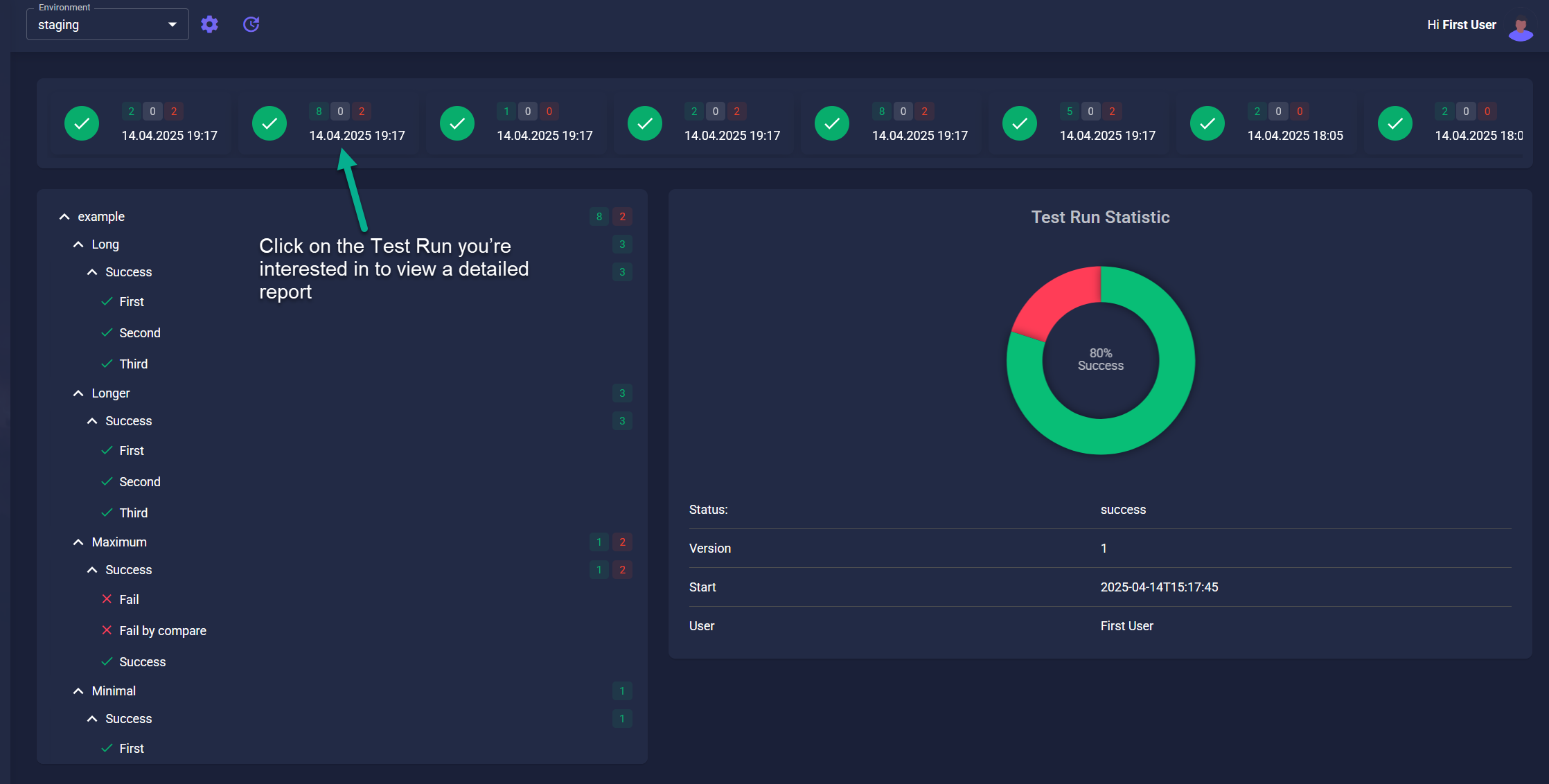
Click on a test run to view its detailed report.
On the left side, you will see a tree of all test results, while the right side shows overall statistics for the selected run.
To inspect an individual test report, simply click on it.
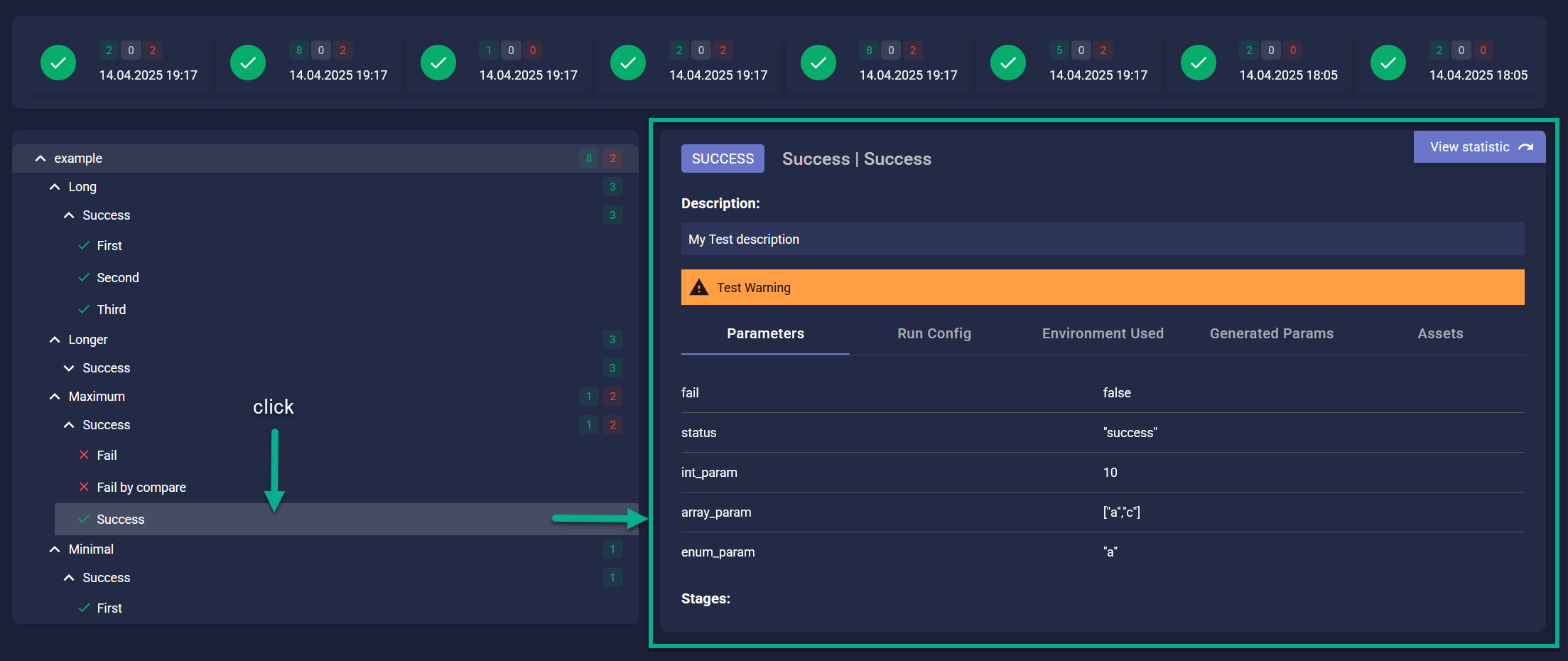
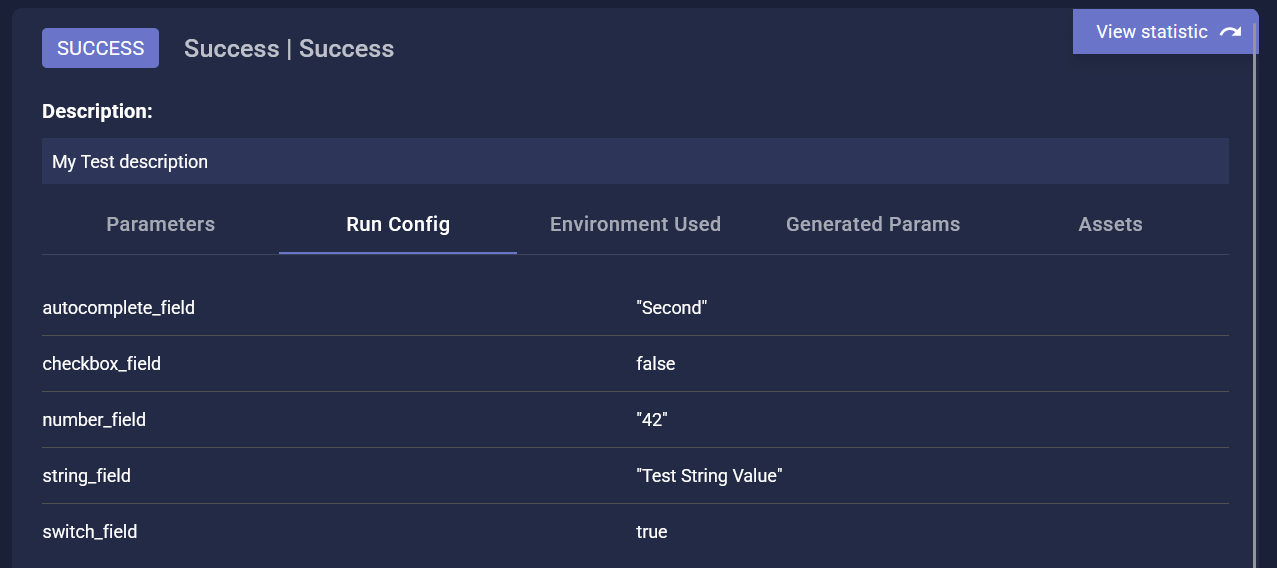
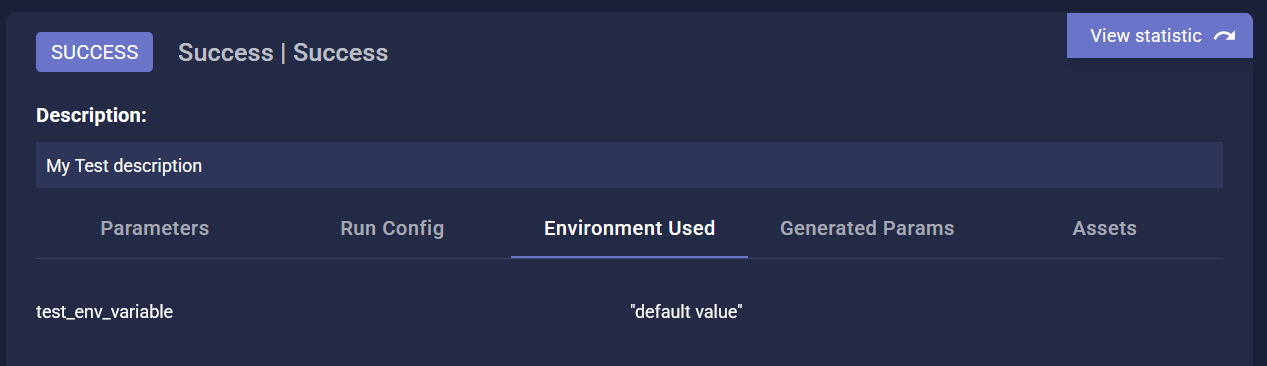
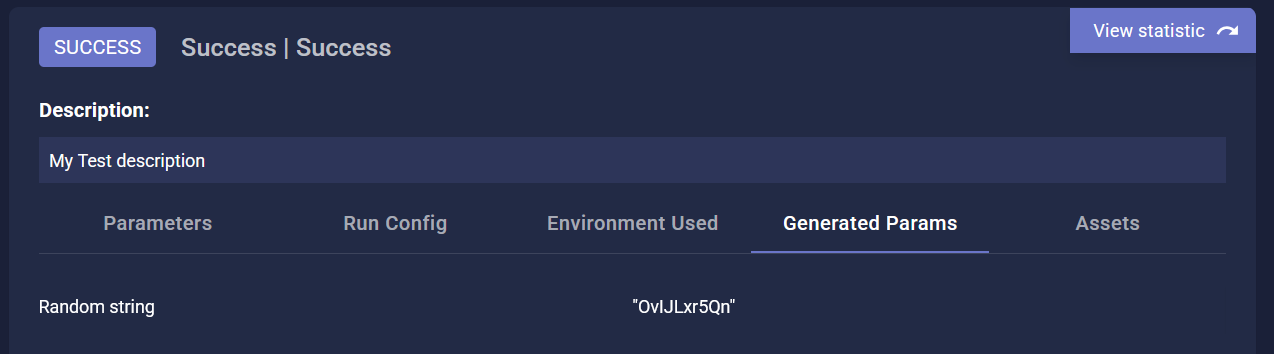
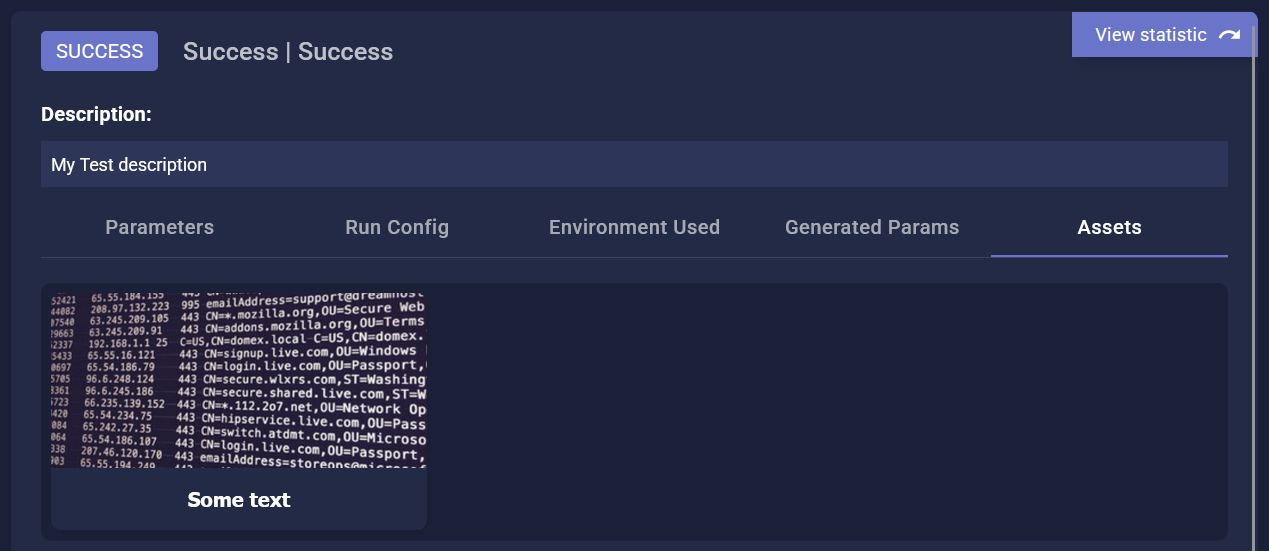
Each test report contains:
Step-by-step execution details
Run configuration (if any)
Used environment variables and their values
Values generated during the test
Files generated during the test (screenshots, videos, logs)
Script Selection Widget
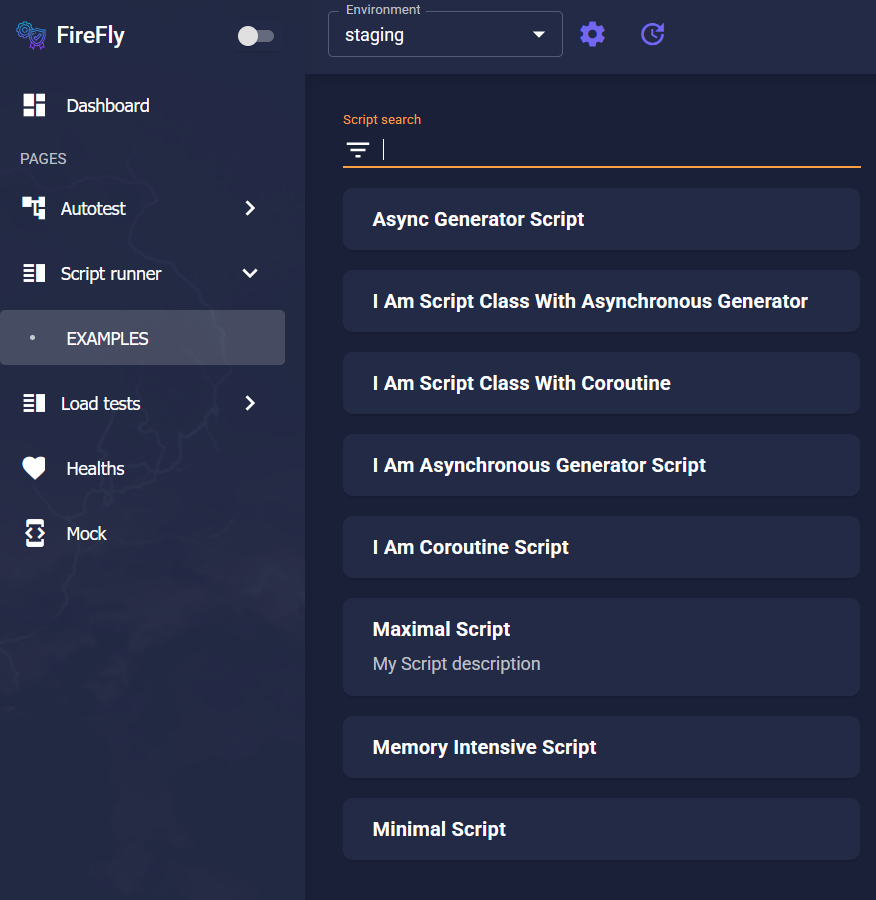
On the Script Runner page, you can find a list of available scripts for each brand.
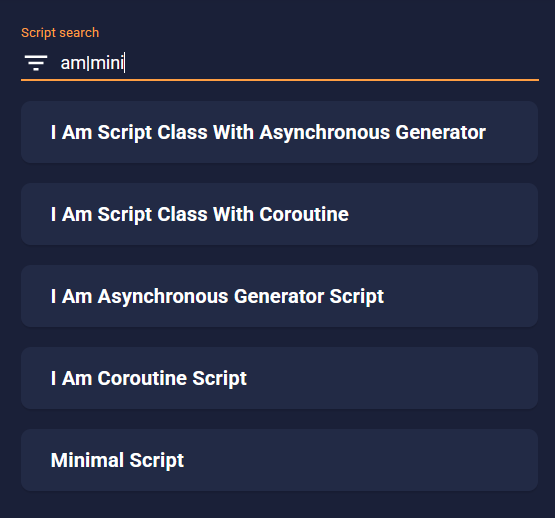
The search bar allows you to quickly locate scripts by either their name or description.
Script Execution
To launch a script:
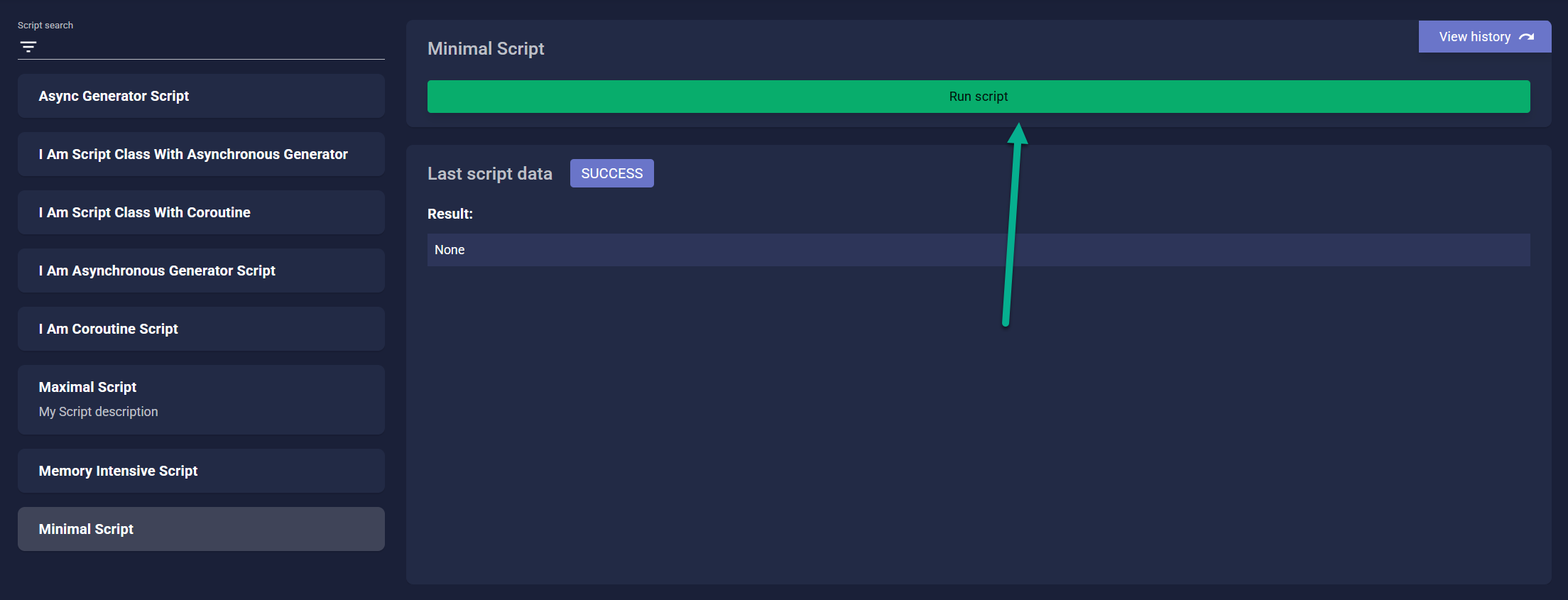
Click on a script from the list.
The launch form will appear on the right side.
If the script has parameters, fill them in (some scripts might not require any parameters).
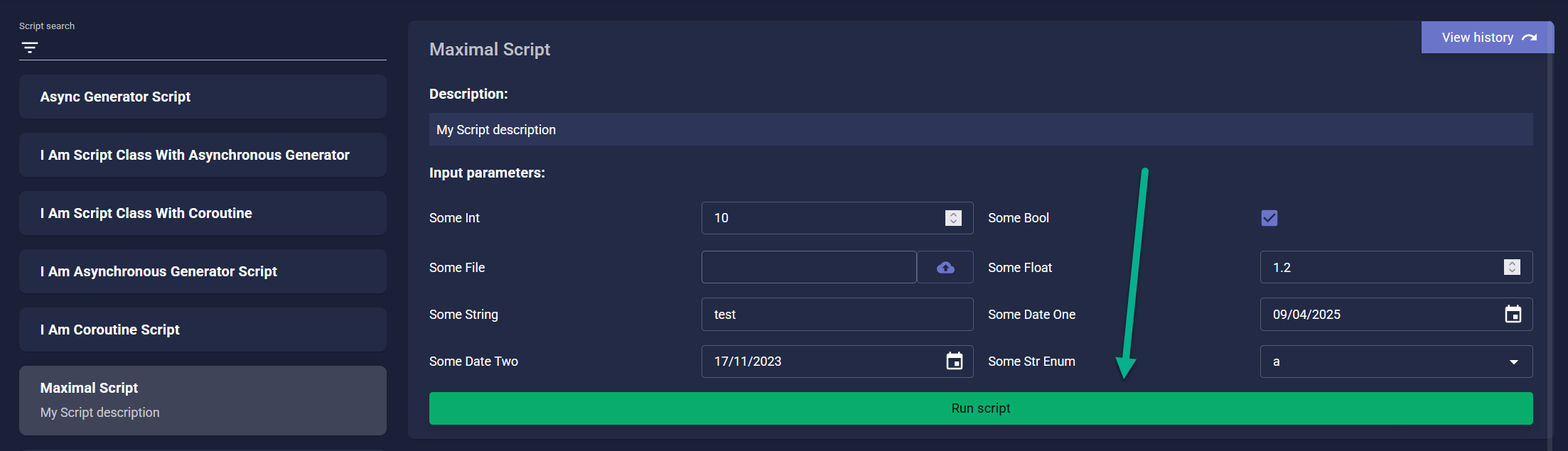
If a parameter has a default value, it will be automatically populated — but you can modify it if needed.
After completing the form, click the green button to start the script.
The script will launch instantly, and you will see the result without reloading the page.
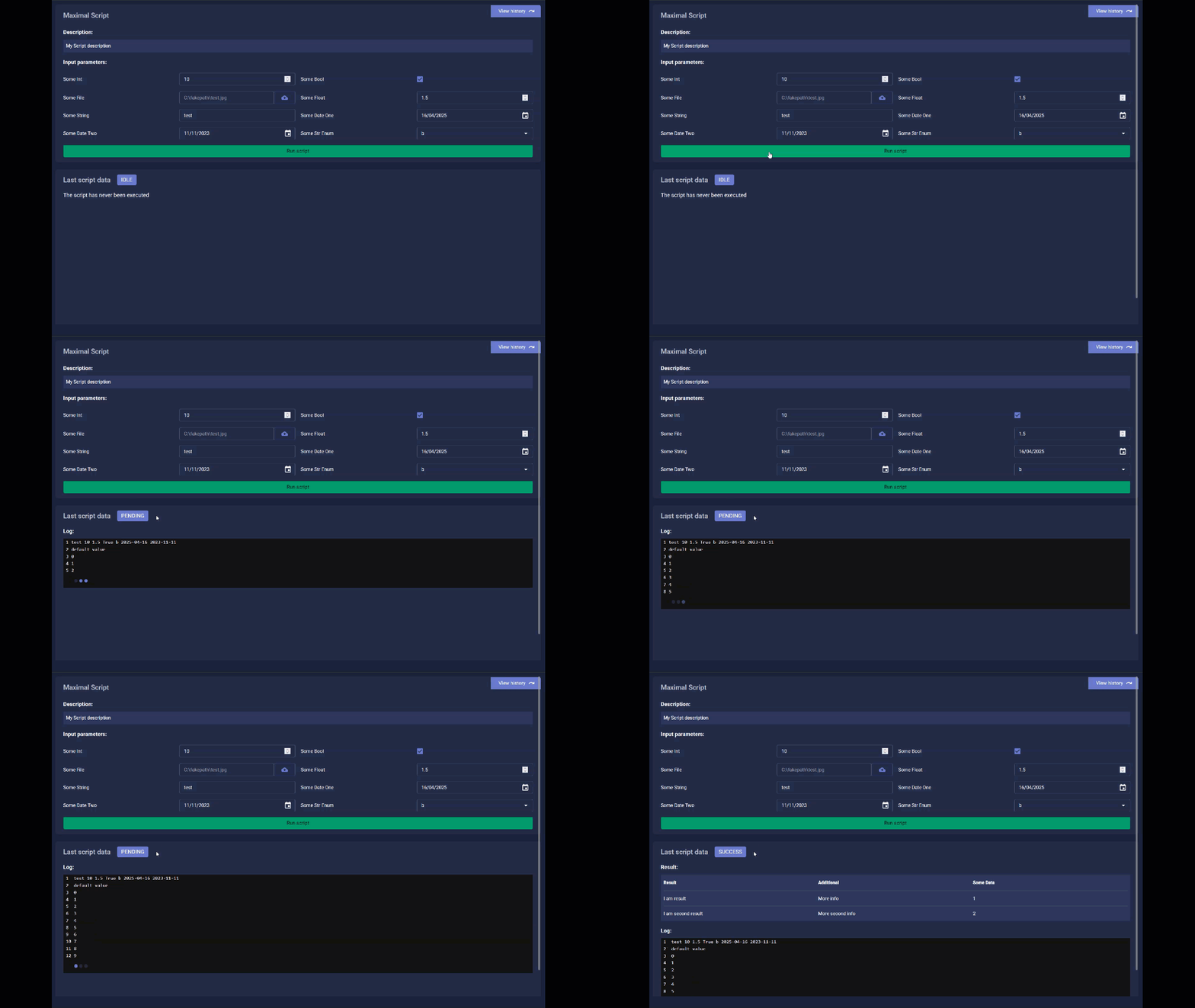
Last Executed Script Results
A widget displays the latest script result, including:
Execution status
Result content
Log messages
Environment variables used
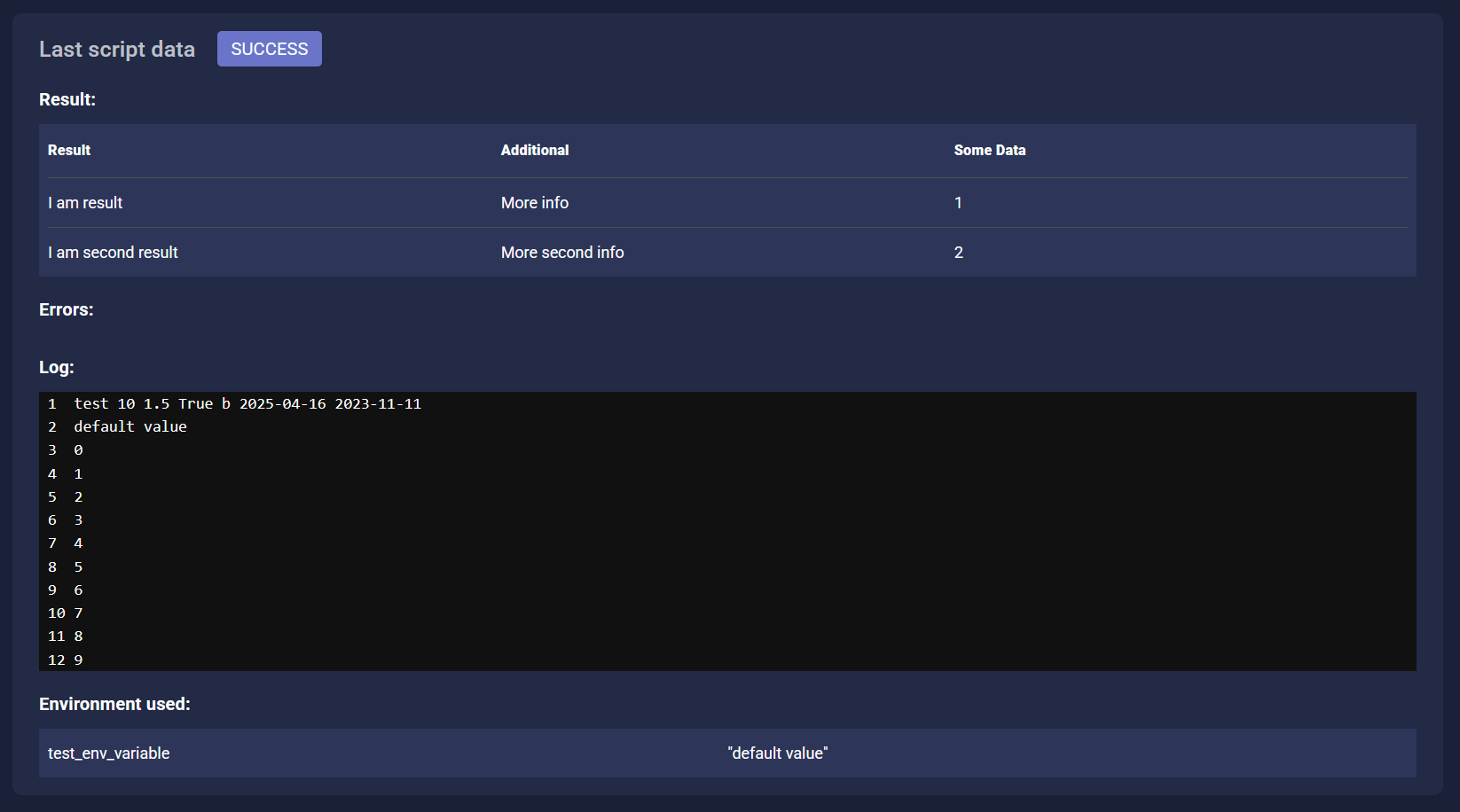
Scripts may also complete with one or more errors.
You can expand the Traceback section to see detailed error traces.
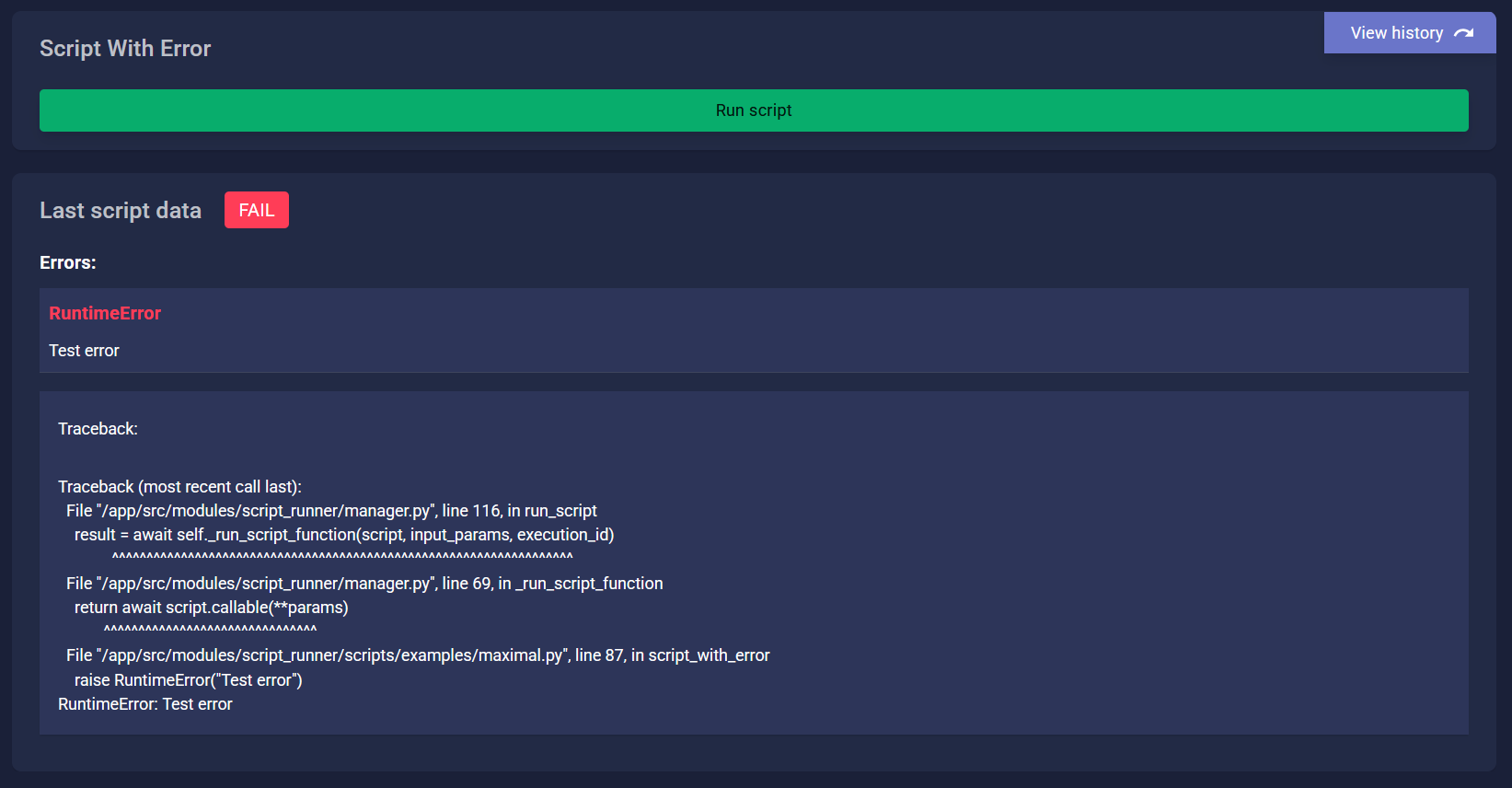
Script Run History
To view the history of a script’s executions:
Click the View history button located in the upper right corner of the script card.
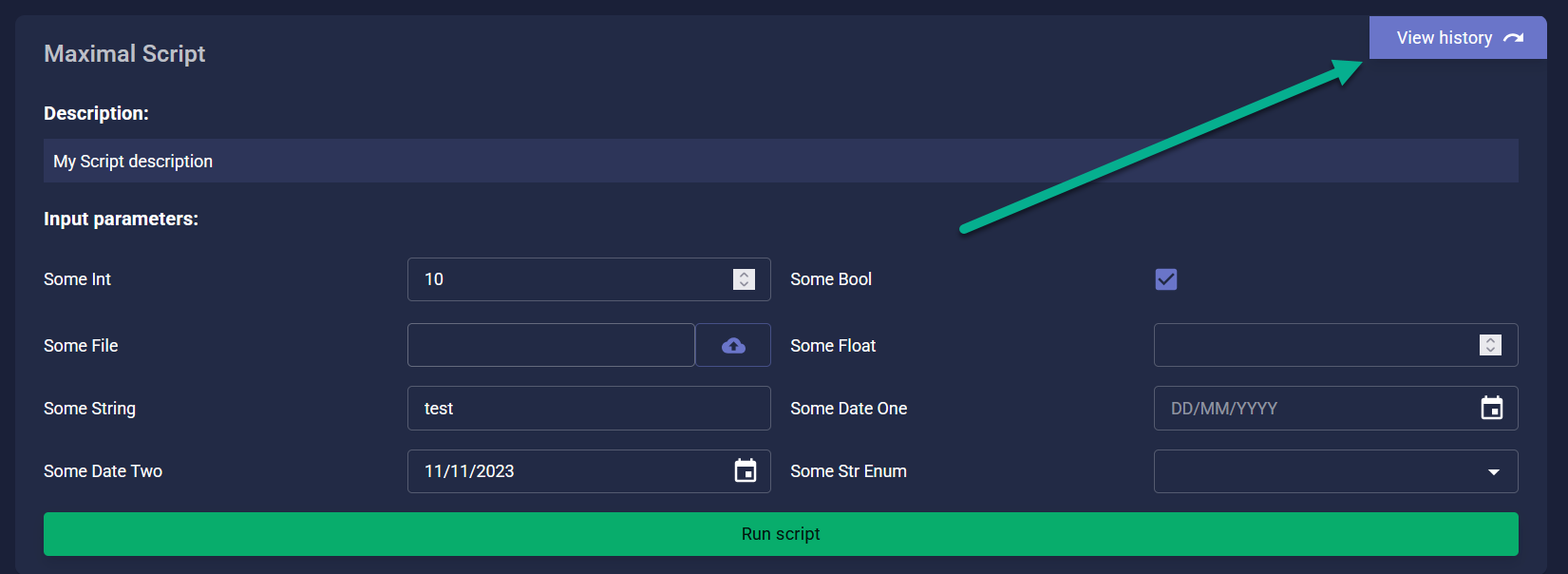
The history displays all runs of the script by all users, showing:
Run parameters
Results
Log
Environment variables used
Any errors that occurred
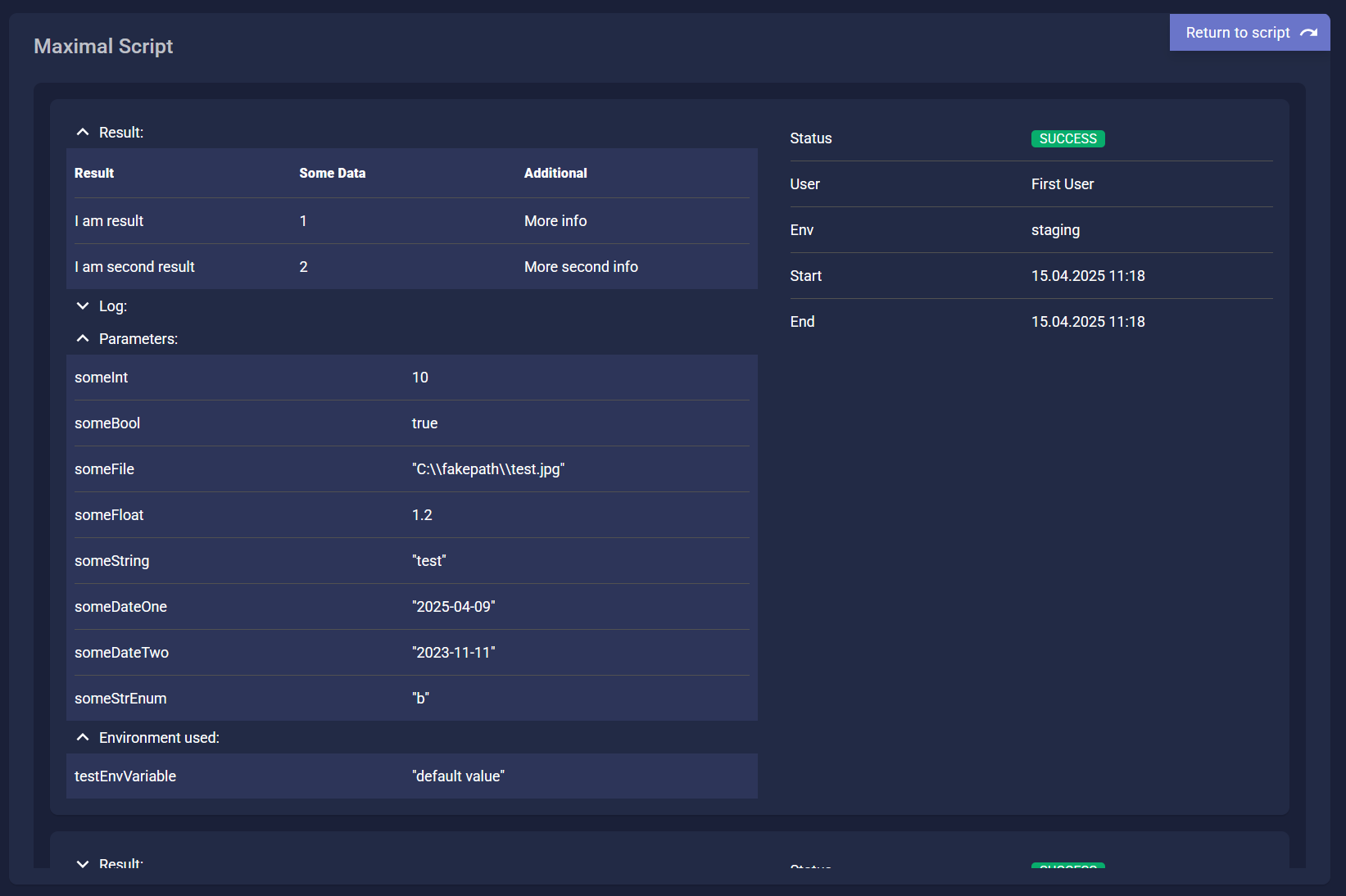
To return to the script execution form, click Return to script at the top right corner.